

Common Causes Behind Incorrect Printer Outputs
A printer that prints wrong is usually caused by a bad connection, the wrong printer selected, a stalled print queue, outdated drivers, non-genuine supplies, or dirty printheads. Work through those in order, starting with the cable or Wi-Fi link, and call a technician if the problem survives all of them.
TL;DR
Most print errors come from simple causes you can check in a few minutes, such as a loose cable, a weak Wi-Fi signal, or a job sent to the wrong shared printer. A stuck queue can stall a machine, and clearing it or restarting the printer often clears the fault. If the output is still wrong, reinstall the driver from the manufacturer’s site, use original supplies, and clean the printhead as the manual describes. Persistent faults may point to hardware, and a local technician can diagnose it before more damage is done.
Key takeaways
- Check the connection first: secure the cables on both ends, and for Wi-Fi make sure the signal is strong enough to hold a steady link.
- In an office with several printers, confirm the printer name before sending a job, since a wrong selection wastes time and paper.
- Clear stalled jobs from the queue, then restart the printer, and if needed unplug it for a few minutes and restart the computer.
- Reinstall the printer using the latest driver from the manufacturer, since outdated drivers and mismatched operating systems cause compatibility errors.
- Use original supplies from authorized dealers and clean a dirty or clogged printhead following the manual, because counterfeit cartridges and clogs both produce smudged or uneven prints.
When your printer starts producing poor-quality or incorrect prints, it can interrupt workflow and cause frustration. Understanding why your printer is printing wrong helps fix issues faster and avoid future disruptions. In most cases, connection problems, wrong settings, or dirty printer parts are to blame. Here’s how you can troubleshoot and get your printer back in shape.
Check the Connection
Incorrect prints often happen when the printer can’t communicate properly with your device. Make sure all cables are securely attached to the printer and computer. If you’re using Wi-Fi, check that the signal is strong enough to maintain a stable link. A weak connection may interrupt commands and cause print errors.
Select the Correct Printer
In office environments where multiple printers are shared, it’s easy to send a job to the wrong device. Double-check the printer name before printing to ensure you’ve selected the right one. This quick step can save time and avoid wasted materials.
Clear the Print Queue
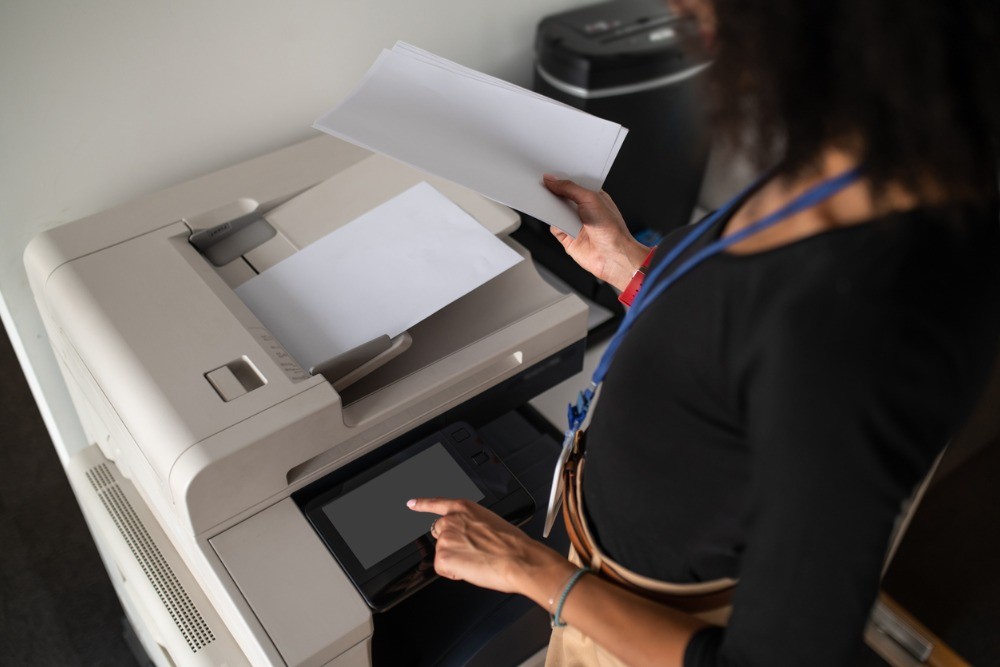
When too many jobs are pending, multifunction printers can stall. Clearing the queue or restarting the printer often resolves this issue. If the problem persists, unplug the machine for a few minutes to reset it, then restart your computer to re-establish the connection.
Uninstall and Reinstall the Printer
If your printer continues to print incorrectly, try uninstalling and reinstalling it. Sometimes, outdated drivers or mismatched operating systems can cause compatibility problems. Download and install the latest printer driver from the manufacturer’s website to ensure optimal performance.
Use Genuine Printer Components
Counterfeit ink cartridges and parts may cause misprints or damage the printer. Always buy original supplies from authorized dealers. Using authentic components ensures compatibility and protects your machine from internal issues.
Clean the Printer Head
Dirty or clogged printer heads can result in smudged or uneven prints. Refer to the printer manual for specific cleaning instructions. Regular maintenance helps maintain print quality and extends the life of your printer.
Final Thoughts
If the problem continues after trying these fixes, it may be time to consult a professional. Local technicians can assess hardware or software problems more accurately and prevent further damage.
If you plan to get copiers for your office in Atlanta, you can buy or lease copiers through Clear Choice Technical Services. Our local copier leasing team can help you find the right equipment for your business.
For assistance, call (404) 369-0911. Our copier leasing and repair specialists in Atlanta are ready to help.


